































We were unable to process your request. Please try again.
iOS 14 Microphone Issue!
Unfortunately, recent iOS updates have made it not possible to use a microphone on your device and hear the performer at the same time.
You may still use the cam2cam feature in "video only" mode and you will be able to hear the performer, but they won't be able to hear your sound.
This issue has been resolved in iOS 15, so you will be able to use cam2cam with audio if you upgrade your device to it.
iOS 15.1 Connection Issue!
Unfortunately, iOS 15.1 is experiencing connectivity issues. There is no fix currently available but we are working to resolve this. Apologies for the inconvenience.
Click the power button to launch.
VIPs can use these functions in all non-voyeur show types, including public chat. Registered users can only use cam2cam in private shows.
Reconnect
WebRTC Required
The browser you are using does not support the cam2cam feature.
Cam2Cam lets your model see and hear you through your webcam device. This completely free feature is the best way to turn ip the intimacy of your cam shows and take your relationships to new heights!
All members can go Cam2Cam in a private show. But VIP members can use the feature in any non-voyeur show type: private, party, group, and even free public chat. Become a VIP and show your favorite models the real you!
We recommend Chrome, Firefox, or Safari for the best experience. The new Cam2Cam interface is integrated into the web page and will not be blocked by pop-up blockers. If you leave the private show or exit the models room, your feed will close automatically.
Go private and click the Cam2Cam icon in the options bar.
Click the power button above to launch the Cam2Cam interface.
Grant your browser camera and microphone access if prompted.
Once the successful test is complete, switch on "Go Live" then "Start Your Cam".
Your video feed will appear in the same pop-out element as the settings and testing options.
The model must agree to view your feed. When they do, you will be notified with a chat message.
Audio may not be available for all models
Be sure to keep your webcam software/drivers up to date to avoid issues
VIP members do NOT have to restart their Cam2Cam session when transitioning between show types
Only the model can access your stream. Other customers will not see you
Other customers may hear you through the model's speakers/mic
Your browser will use your device's front camera by default. You may switch your device's camera by pressing the switch icon over the video.
Safari on iOS
Your browser will use your device's front camera by default. You may switch your device's camera by pressing the switch icon over the video.
Please note that while you have the browser Settings open, your broadcast will be paused for the performer. It will be resumed once you close the Settings.
To access your camera settings, please follow these steps:
Step 1
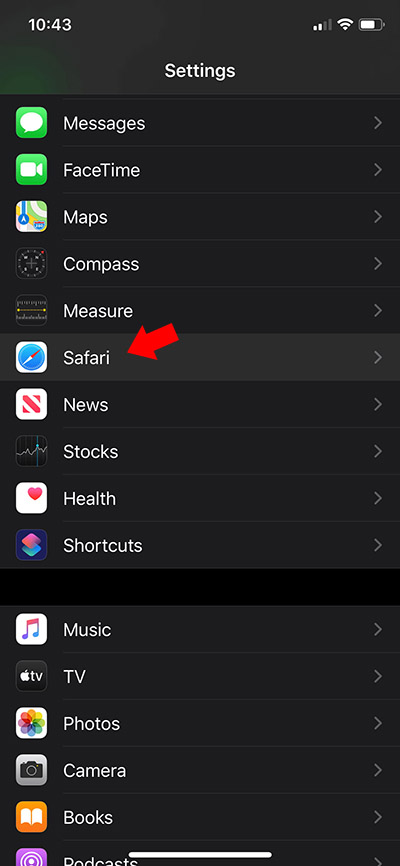
Open device settings:
Step 2
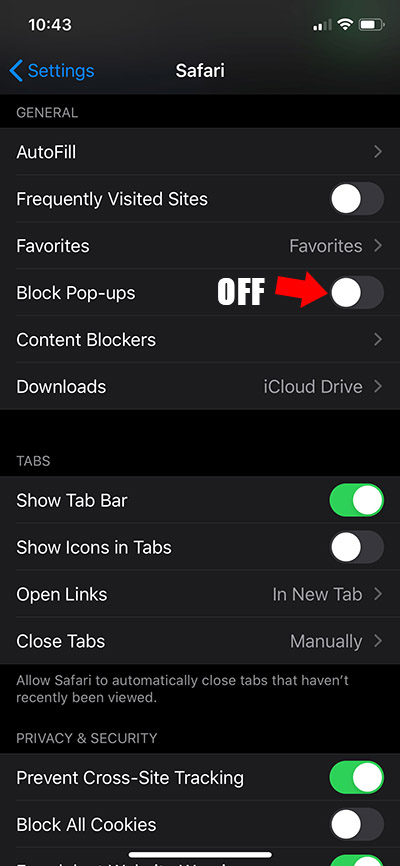
Under Safari, switch "Block Pop-ups" off:
Step 3
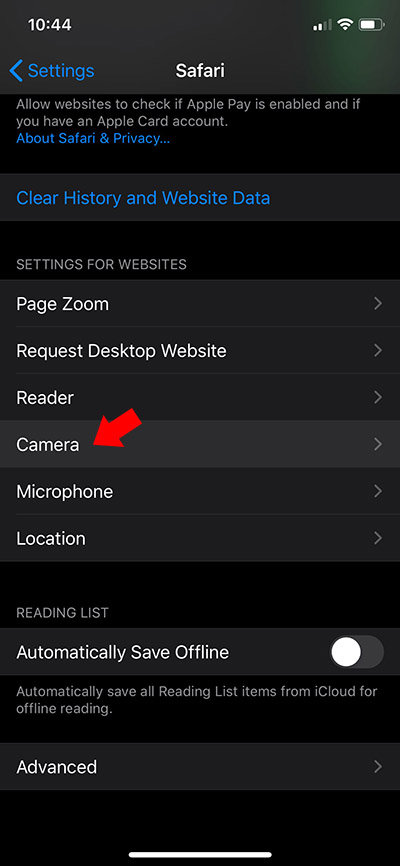
Under Safari, select the "Camera" option:
Step 4
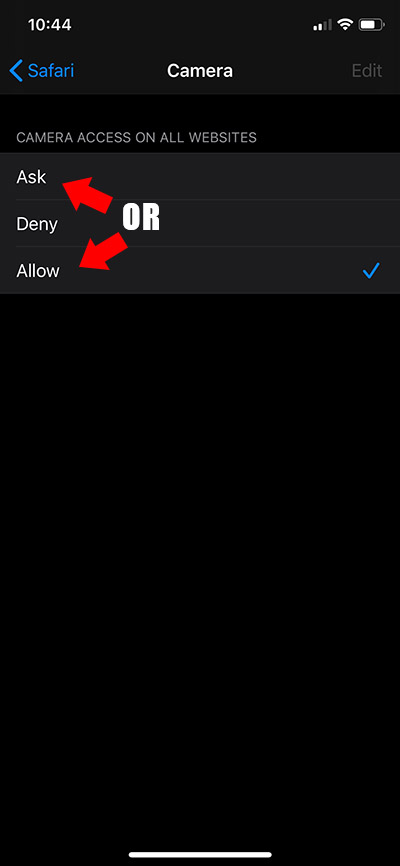
Under Camera, select "Allow" or "Ask":
Step 5
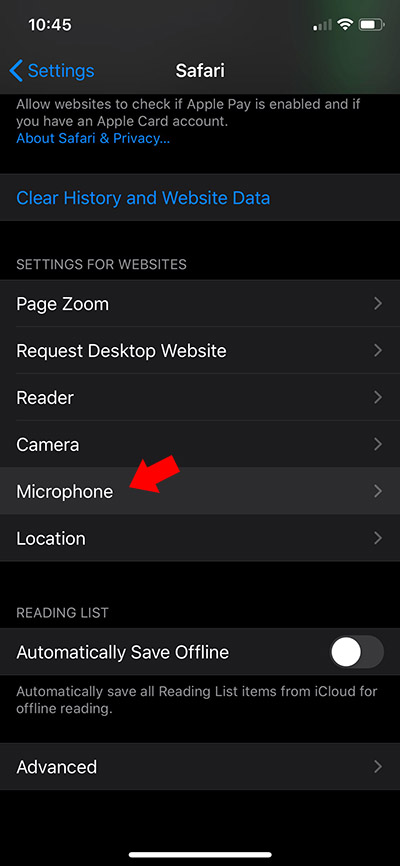
Under Safari, select the "Microphone" option:
Step 6
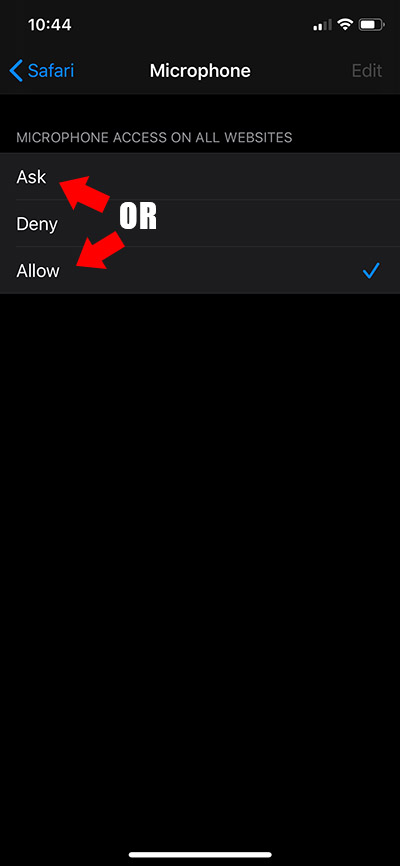
Under microphone, select "Allow" or "Ask":
Chrome on Android
Your browser will use your device's front camera by default. You may switch your device's camera by pressing the switch icon over the video.
Please note that while you have the browser Settings open, your broadcast will be paused for the performer. It will be resumed once you close the Settings.
To access your camera settings, please follow these steps:
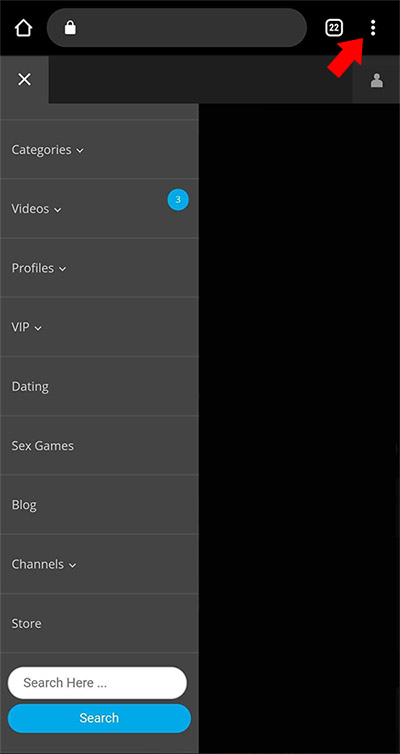
Step 1
Click on the "three dots" menu in the top right corner of your browser tab to open the Menu:
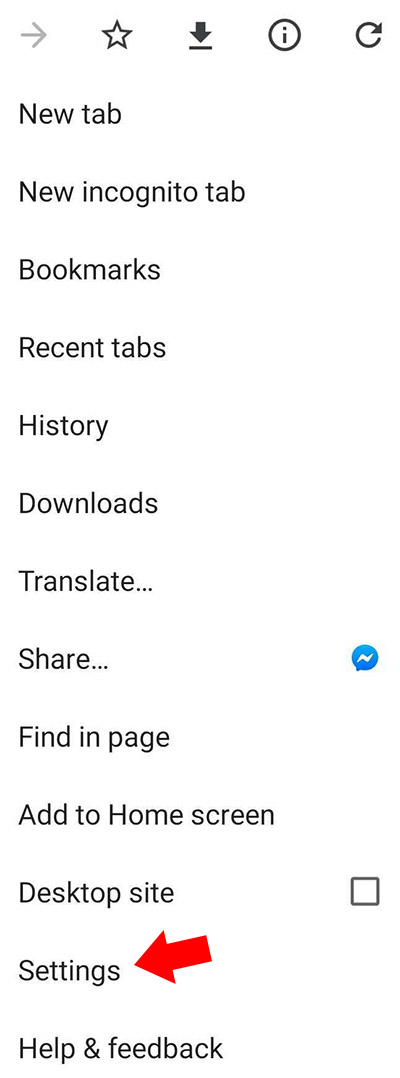
Step 2
In the Menu, click "Settings":
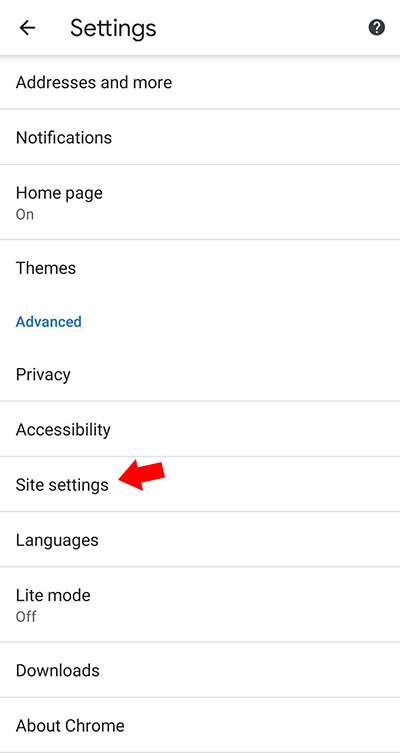
Step 3
Scroll down to and click "Site Settings":
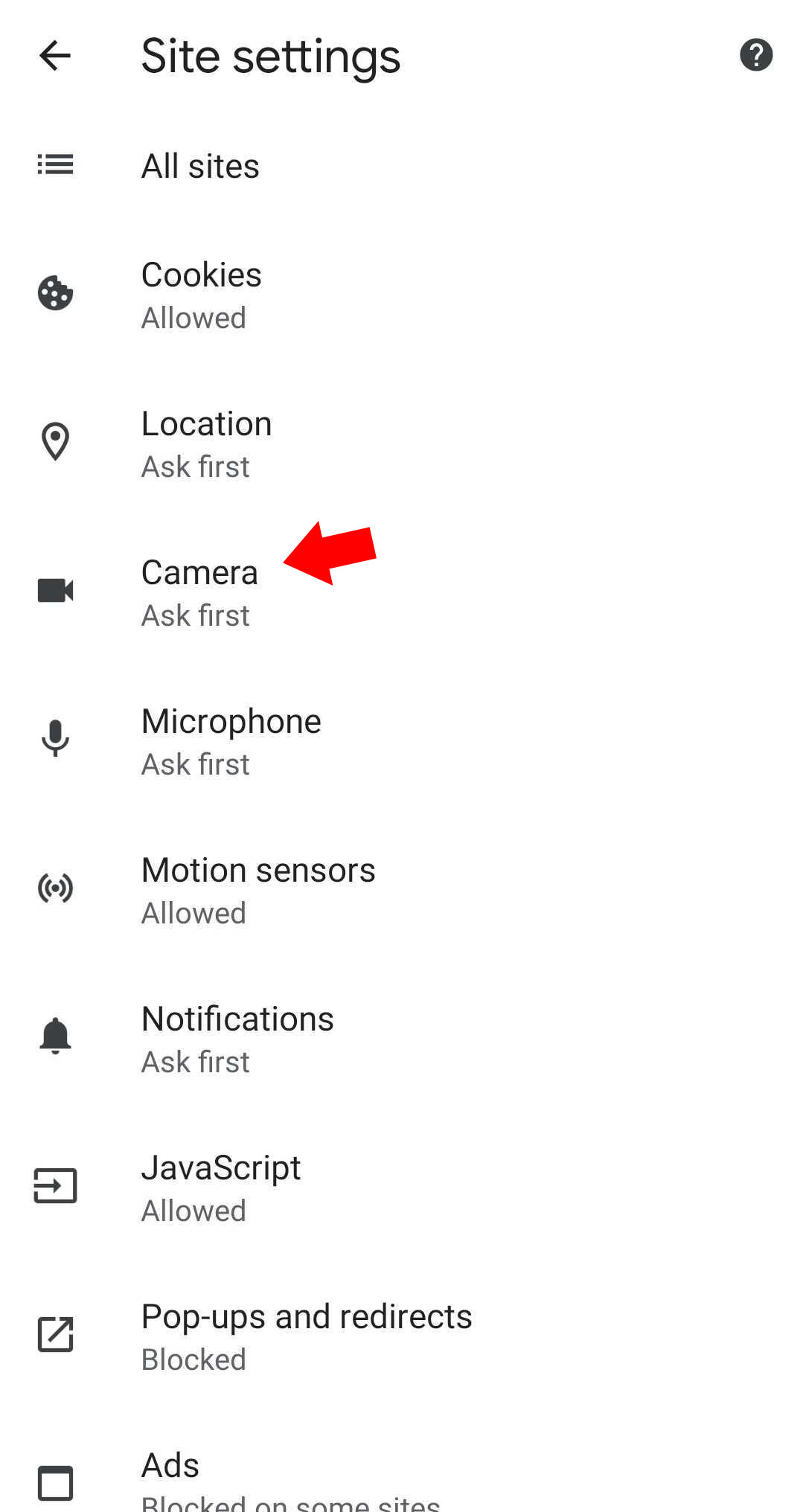
Step 4
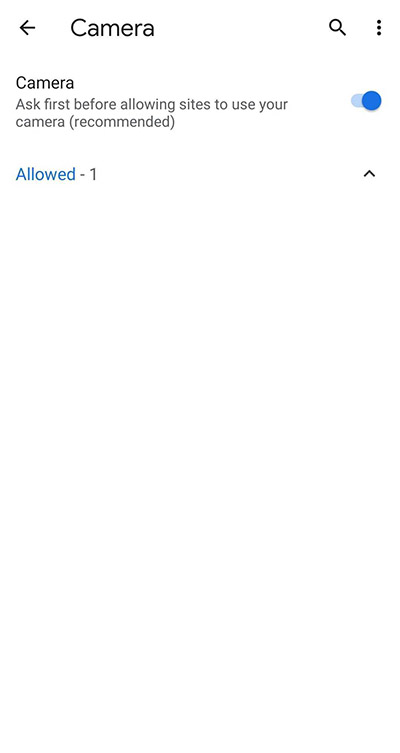
Click on "Camera":
Step 5
Turn on the toggle for Camera. Then click on the site's name in the list below
Step 6
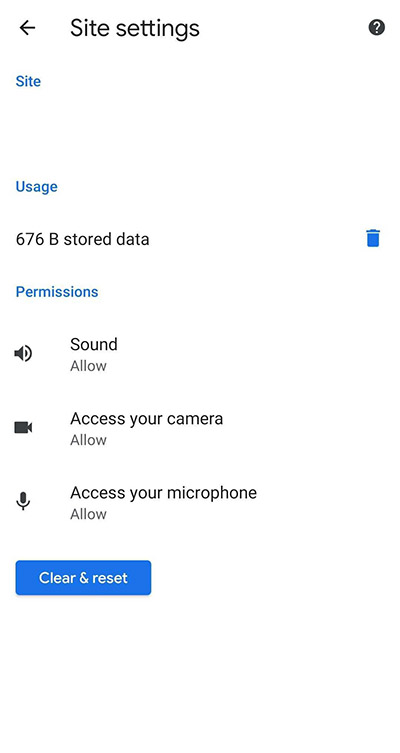
After clicking on the site name, you will be taken to the following screen, where you can click each of the Permissions to select between "Allow" and "Block" for them individually:
Opera on Android
Your browser will use your device's front camera by default. You may switch your device's camera by pressing the switch icon over the video.
Please note that while you have the browser Settings open, your broadcast will be paused for the performer. It will be resumed once you close the Settings.
To access your camera settings, please follow these steps:
Step 1
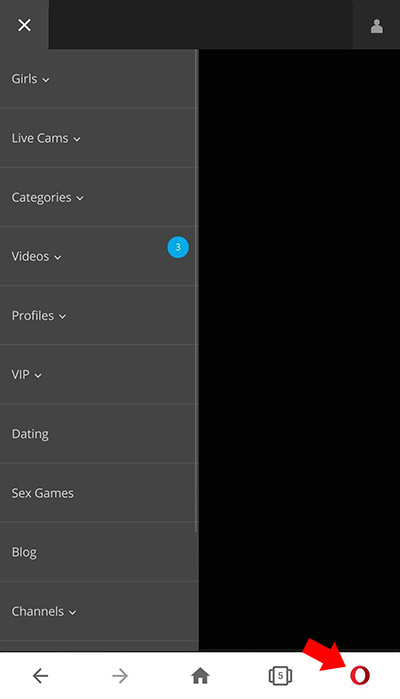
Click the "Opera" icon in the bottom right corner of the browser:
Step 2
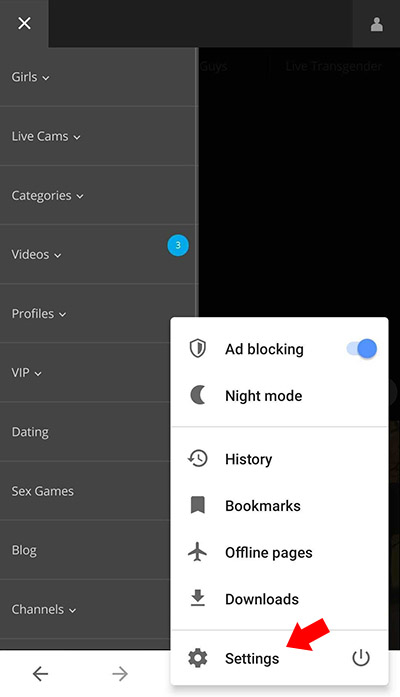
Go into "Settings":
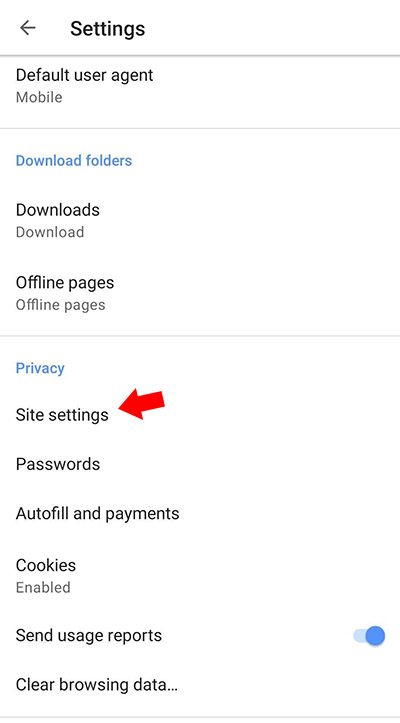
Step 3
Scroll down to the "Privacy" section of the Settings and select "Site Settings":
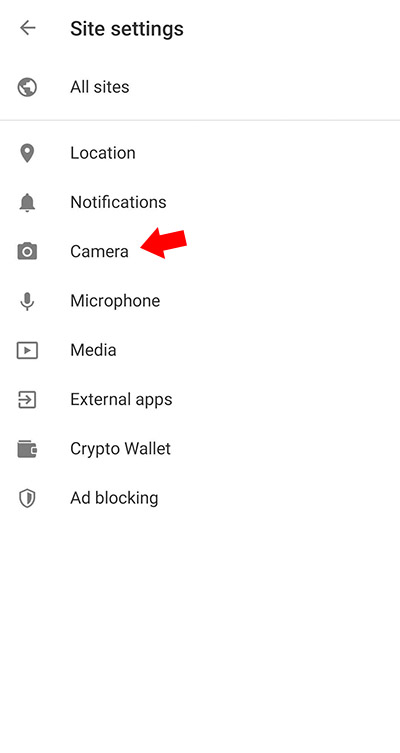
Step 4
In "Site Settings" select "Camera":
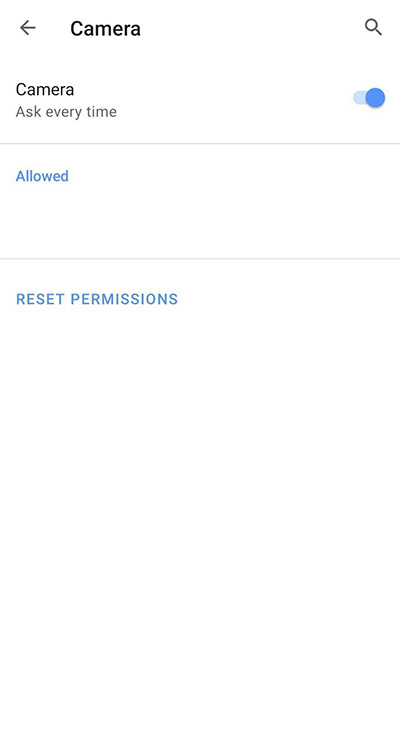
Step 5
Turn on the toggle for Camera. Then click on the site's name in the list below:
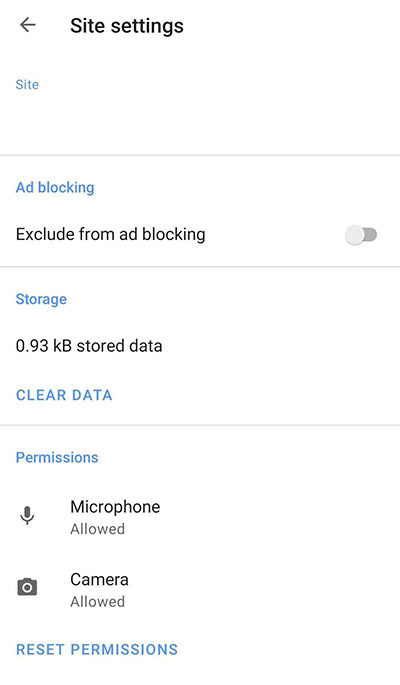
Step 6
After clicking on the site name, you will be taken to the following screen, where you can click each of the Permissions to select between "Ask every time", "Allowed" and "Denied" for them individually:
Firefox on Android
Your browser will use your device's front camera by default. You may switch your device's camera by pressing the switch icon over the video.
Please note that while you have the browser Settings open, your broadcast will be paused for the performer. It will be resumed once you close the Settings.
Enjoy Free Sex Cams and Premium Adult Chat: Girls, Guys, and Trans performers live, in high definition.
By entering the site, you acknowledge and affirm under oath that you are 18 years old or older, that all certifications made by accepting the Terms and Conditions are true and correct, and that you have read our Privacy Policy.
law requires an AI safety scan on this room: unregistered viewers watch on a 10-second delay, and nudity is blurred until you verify your age. One quick check removes both.
Nudity detected, blur incoming
Our AI flagged the next few seconds of this delayed stream. Finish the two quick steps in the chat panel to keep watching uninterrupted.